How to Make a Switch Game with AI (Honest 2026 Guide)
Want to make a Nintendo Switch game with AI? Here is the honest path: how to build a Switch-style game by describing it in plain English, the truth about getting it onto real Switch hardware, and which template to start from.
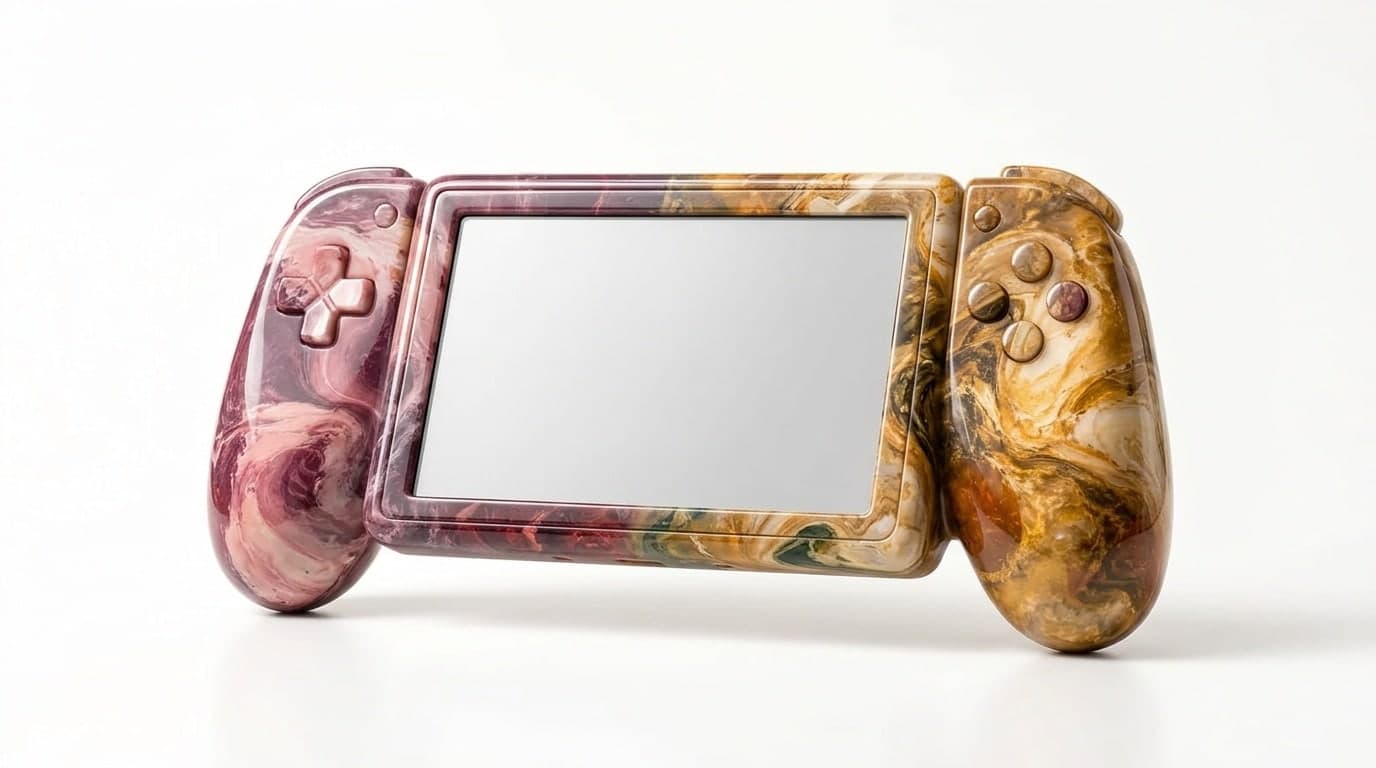
Search "make a switch game with AI" and most results either dodge the hard part or quietly imply something that is not true. So here is the honest version up front, then the actual build guide.
Two things are true at once. You can build a genuinely good Switch-style game with AI right now, faster than a year ago. And you cannot publish it directly to a retail Nintendo Switch with any AI tool, or any engine, on its own. Those are not in conflict. They are two different stages: building the game, and licensing it onto a closed console. This guide handles both, in order, without pretending the second one is a button.
First, the truth about "Switch"
The word "Switch" in your search is doing a lot of work, and it usually means one of two things.
Meaning one: a game that feels like a Switch game. Cozy, colorful, pixel-art or clean low-poly, built for a controller and a handheld screen. Think the kind of indie that thrives on the eShop: a tight 2D platformer, a relaxing farming sim, a small top-down RPG, a couch co-op party game. This is almost entirely a design and build problem, and AI is genuinely good at it now.
Meaning two: a game actually published on the Nintendo Switch. This is a licensing problem, not a software one. The Nintendo Switch is a closed platform. Its console SDK is confidential, available only to approved developers under a Nintendo NDA. That means:
- No public engine can ship a legal one-click Switch export. Not Unity, not Unreal, not Godot, not any AI tool. This is a platform rule, not a missing feature.
- You need an approved Nintendo developer account through the Nintendo Developer Portal.
- The actual console build is typically produced by a licensed third-party porting house, the same path commercial Godot games take to reach the eShop.
If a product implies you can type a prompt and have a cartridge, be skeptical. The console does not work that way for anyone. What is real: you build the entire game with AI, prove it on platforms you control, and then pursue the Switch port as a deliberate, separate step. Phase one is where almost all the work and almost all the fun is.
Phase one: build the game with AI
The big shift with an AI-native engine is what gets slow. In a traditional engine, the player controller, input handling, and scene wiring eat your first days. With AI, you describe each piece in plain English and it writes real GDScript and builds the scene, so that part becomes a conversation. What stays hard, and what decides whether your game feels like a real Switch indie, is feel and controller design. This guide spends most of its time there.
Step 1: Pick a template by genre, not by platform
Open Summer Engine, create a new project, and choose a template that matches the game you actually want to make. "Switch game" is not a genre, so pick the genre underneath it. Most games that read as Switch games are cozy 2D, which is exactly where these starting points shine.
| You want to make | Start from | Reference feel |
|---|---|---|
| Cozy platformer | 2D Platformer | A short, charming side-scroller |
| Farming or life sim | Simulation | Stardew-style daily loop |
| Top-down adventure or RPG | Top-down RPG | A small Zelda-like or JRPG |
| Couch party game | 2D template + local multiplayer | Quick pick-up-and-play fun |
| Small 3D adventure or kart game | 3D Platformer / 3D | Handheld-scale 3D |
Starting from a template means the player controller, input map, and scene structure already exist, so your first prompt iterates on a working game instead of an empty scene. Browse the full set at Summer Engine templates.
Step 2: Set up controller input from the very first prompt
This is the single biggest thing separating a "Switch-style" game from a generic web game, and almost everyone adds it last. A Switch game is played on a gamepad, often handheld, so design for that from the start.
A good opening prompt after loading your template:
"Set up player input to work with both a keyboard and a game controller. Use a comfortable analog stick deadzone, map jump and the main action to the face buttons, and make sure nothing in the game requires a mouse."
Because Summer Engine is compatible with Godot 4, this maps to the standard input system: input actions bound to both keys and joypad buttons, with analog axes for movement. You can open the input map and rebind anything by hand later, but starting here means every feature you add afterward is controller-aware by default instead of a keyboard game you retrofit.
Step 3: Build one mechanic at a time
The mistake almost everyone makes, with AI or without it, is trying to build the whole game in one prompt. "Make a cozy farming game with crops, animals, NPCs, a shop, and seasons" gives you a shaky version of everything and nothing you can tune. Build in layers. Each layer is playable on its own, so you catch problems while they are small.
For a cozy 2D game, a sane order looks like this:
- A character that moves and interacts cleanly with a controller
- The one core verb your game is about (planting, jumping, talking, collecting)
- The space it happens in: a single room, field, or level that feels good
- Feedback: sound, a little animation, a small particle, screen-readable UI
- A loop: a reason to do the core verb again (a day cycle, a score, a goal)
- Content: more rooms, more crops, more levels, once the loop is fun
- Menus, save and load, and a title screen
Notice that menus and content come last. A common trap is generating ten levels before the first one is fun. Get one slice genuinely enjoyable on a controller, then multiply.
Each step is a short follow-up prompt, like:
"Add a day-night cycle. The day should last about ten real minutes, then fade to night and let me sleep to skip to the next morning."
You play after each one. That tight loop, prompt, play, adjust, is the whole method.
Step 4: Design for a small screen and a thumbstick
A layout that feels fine on a desktop with a mouse can feel cramped or fiddly in handheld mode. Switch players notice this immediately, so bake it in:
- Keep UI text large. Readable on a small handheld display, not just a monitor.
- Keep important action near the center. The edges of the screen are easy to lose track of in handheld mode.
- No tiny targets. Anything the player selects should be reachable and obvious with a thumbstick or D-pad, never a precise mouse click.
- Respect a 16:9 frame. The Switch screen and its TV output are both 16:9, so test in that aspect ratio.
You can ask the AI to handle most of this directly: "Make the UI larger and controller-friendly, keep the action centered, and confirm the layout works in 16:9." Then playtest the result, because feel is something only playing reveals.
Step 5: Generate the cozy art that sells the vibe
A lot of what makes a game read as a Switch indie is the look: warm palettes, soft pixel art or clean low-poly, friendly characters. Summer Engine can generate 2D and 3D assets in-project, so you can prompt for a character sprite, a tileset, or a small prop and drop it straight into the scene. Keep a consistent style instruction across prompts ("soft pastel pixel art, chunky outlines") so your assets look like they belong to one game rather than a pile of stock pieces.
Step 6: Playtest with an actual controller
This is the step AI cannot do for you. Plug in a gamepad and play your game the way a Switch player would, sitting back from the screen, not hunched at a keyboard. You are checking three things: does movement feel right on the analog stick, can you do everything without a mouse, and is the text readable from arm's length. Every problem you find is a small follow-up prompt or a one-line tweak in the editor. None of it is hard. It just has to be done with a controller in your hands.
Phase two: getting it onto a real Switch
Once you have a finished, fun game running well on a controller, here is the honest path to the actual console, in order:
- Ship it somewhere first. Export to PC (Steam or itch.io) as a Windows or macOS build, which you fully control and which Summer Engine's free tier covers with no watermark and no revenue share. This is how you prove the game is worth porting, and it is where your first players and revenue come from.
- Apply to the Nintendo Developer Portal. Approval is a real step with real requirements; a game that already exists and has an audience makes a far stronger case than an idea.
- Arrange the port. A Switch build of a Godot-compatible game is produced through a licensed third-party porting partner under NDA. This is a paid, separate engagement, not an engine feature (Summer has no console export of its own), and it is the same route established indie Godot games take to the eShop.
Treat phase two as a milestone you earn, not a checkbox in an export menu. The games that reach Switch are rarely the ones that targeted the console from day one. They are the ones that built something good, shipped it where they could, and earned the port.
The honest free-versus-paid picture
Building the game is free. Summer Engine's free tier gives you the full editor, AI building, and Windows and macOS export for PC, with no watermark and no revenue share. You only pay for more AI usage on bigger projects.
What is genuinely not free is the Switch release: a Nintendo developer account and a licensed port are paid, separate steps that live outside any engine. Better to know that now than to discover it after building your hopes around a one-click console button that does not exist for anyone.
Start building
A Switch-style game is, mechanically, a well-designed 2D or 3D game built for a controller and a small screen. That part is fully within reach today: describe it, play it, refine it, and ship it to the platforms you control.
- See how the conversational build loop works on the AI game maker page.
- Pick your starting point from the templates library.
- When you are ready to ship phase one, the how to publish your PC game guide walks through Steam and itch.io.
Build the game first. Earn the cartridge later. The first part is the fun part anyway, and it costs nothing to start.
Frequently asked questions
- Can I make a real Nintendo Switch game with AI?
You can build the game with AI, but you cannot publish directly to a retail Switch with any AI tool or any engine on its own. Nintendo requires an approved developer account, and the actual Switch console build is produced through a licensed porting partner under NDA. So AI handles the part that used to be slow, building and coding the game, but the console release is a separate licensing step that no software bypasses. The honest plan is to build and ship to PC (Windows and macOS) first, then pursue the Switch port once the game is proven.
- Why can't an engine just export to Switch with one click?
Because the Switch is a closed platform. The console SDK is confidential and only available to approved developers under a Nintendo NDA, so no public engine can legally ship a one-click Switch export. This is true for every engine, not just AI ones. Summer has no console export of its own. Indie console versions, Godot games included, usually go through a licensed porting studio or publisher, and that happens after you have a finished game and an approved developer account.
- What does make a Switch game with AI actually mean for most people?
For most people it means one of two things. Either you want a game that feels like a Switch game, cozy, colorful, pixel-art or low-poly, designed for a controller and a handheld screen, or you genuinely intend to publish on the eShop someday. The build process is identical for both. You make the game with AI, design it for a controller and a small display, and ship it to PC. The only difference is whether you also pursue the Nintendo developer license afterward.
- Do I need to know how to code to make a Switch-style game with AI?
No. You describe each feature and the AI writes the GDScript and builds the scene. But because Switch-style games live or die on feel and on controller handling, being able to open a script and change one value (movement speed, the deadzone on the analog stick, the size of a UI element) makes tuning much faster. Summer Engine produces standard projects compatible with Godot 4, so everything the AI writes is normal code you can read and edit whenever you want.
- Which template should I start a Switch-style game from?
Pick the template that matches your genre, not the platform. Most games that feel like a Switch game are cozy or pixel-art 2D, so the 2D Platformer, top-down RPG, or simulation templates are the common starting points. If you are making something 3D and handheld in spirit, like a small adventure or a kart racer, start from a 3D template. Starting from a template means the player controller, input handling, and scene structure already exist, so your first prompt iterates on a working game instead of an empty project.
- Is building a Switch-style game with AI free?
Building it is free with Summer Engine. The free tier covers the full editor, AI building, and Windows and macOS export for PC, with no watermark and no revenue share. You only pay if you want more AI usage on larger projects. The cost that is not free is the Switch release itself: a Nintendo developer account and a licensed port are paid, separate steps handled outside any engine. Be skeptical of any tool that implies one-click Switch publishing is free, because the console platform does not work that way.
- How do I make sure my game plays well on a controller and a small screen?
Design for it from the first prompt instead of bolting it on later. Ask the AI to set up controller input alongside keyboard, use a comfortable analog deadzone, and make every interactive element reachable without a mouse. For the screen, keep UI text large, keep important action near the center, and avoid tiny click targets. Then playtest with an actual controller, because a layout that feels fine with a mouse can be awkward with a thumbstick, and that gap is exactly what handheld players notice first.
Keep reading
All posts
AI Enemy Generator for Games: What It Is and How to Use One (2026)
What an AI enemy generator actually does, the three layers it should cover (sprite, stats, behavior), and how to build working enemies for your game by describing them in plain language.

AI Horror Game Maker: How to Build a Horror Game by Describing It (2026)
How to build a real horror game with AI: the five mechanics that actually make a game scary, which template to start from, and a step by step workflow inside Summer Engine where the AI is wired into the editor.

How to Make a Horror Game With AI: Build a Full Game in One Sitting (2026)
A complete walkthrough that builds one real horror game with AI from empty project to a playable escape-the-monster loop. The exact prompt order, what to do when the AI gets it wrong, and how to export it.